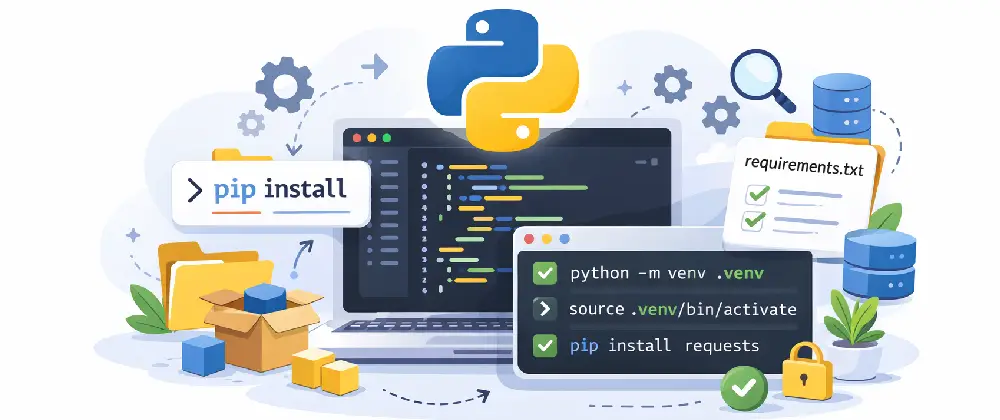
Getting started with Python
In this codelab you'll install Python, learn how pip and virtual environments work, understand what Python is great for (and where other tools are a better fit), and write your first program to verify everything is set up correctly.
What you'll use
- Python — A versatile, beginner-friendly programming language used in data science, automation, AI/ML, and backend development. Learn more →
- pip — Python's default package manager — installs libraries from the Python Package Index (PyPI). Learn more →
- venv — A built-in tool that creates isolated Python environments so each project has its own dependencies. Learn more →
1What is Python?
Python is one of the most popular programming languages in the world. Its readable syntax and massive ecosystem of libraries make it the go-to choice for everything from data analysis to machine learning to backend APIs.
Here's what Python is commonly used for:
- •Data science, analysis, and visualization (pandas, matplotlib, Jupyter)
- •Machine learning and AI (TensorFlow, PyTorch, scikit-learn)
- •Automation and scripting (file processing, web scraping, task scheduling)
- •Backend web development (Django, Flask, FastAPI)
- •Scientific computing and research
⚠️ Where Python isn't the best fit
Python is incredibly versatile, but there are areas where other tools are a better choice:
- •Frontend web development — JavaScript (and frameworks like React, Next.js) run in the browser; Python does not.
- •Mobile app development — Swift (iOS) and Kotlin (Android) are the standard choices.
- •High-performance systems — languages like Rust, C++, or Go are faster for CPU-intensive tasks.
🔄 Python vs. Node.js
Both Python and Node.js can build backend APIs and command-line tools. Python excels at data science and ML, while Node.js is the standard for full-stack JavaScript web development. Many developers use both. If you haven't set up Node.js yet, check out the Getting started with Node.js & npm codelab.
2Install Python
Let's install Python on your system. We recommend Python 3.10 or later.
- Go to python.org/downloads and click the "Download Python" button.
- Run the installer.
⚠️ Important: Check the box that says "Add python.exe to PATH" before clicking "Install Now".
- Open a new Command Prompt or PowerShell window when done.
Using Windows? See Pro Tip #1 to set up Git Bash as your default IDE terminal.
Verify Python installed correctly:
python3 --versionYou should see a version number like Python 3.x.x.
Verify pip is available:
pip3 --versionpip comes bundled with Python 3.4+, so it should already be installed.
3Understanding pip
pip is Python's package manager — it installs libraries from PyPI (the Python Package Index), a public repository with over 500,000 packages.
Here are the most common pip commands:
Install a package:
pip3 install requestsRemove a package:
pip3 uninstall requestsSee what's installed:
pip3 list📄 requirements.txt
Instead of installing packages one by one, Python projects use a file called requirements.txt to list all their dependencies. This is similar to how Node.js uses package.json.
A requirements.txt file looks like this:
requests==2.31.0
flask==3.0.0
pandas==2.1.4
To install everything listed in the file:
pip3 install -r requirements.txtTo generate a requirements.txt from your current environment:
pip3 freeze > requirements.txt🤖 How AI coding agents use pip When an AI agent like Google Antigravity needs a Python library, it will run pip install for you and add the package to your requirements.txt. You always have visibility into what was installed.
4Virtual environments
A virtual environment is an isolated copy of Python for a specific project. It keeps each project's dependencies separate so they don't interfere with each other — or with your system Python.
Why does this matter? Imagine two projects that need different versions of the same library. Without virtual environments, they would conflict. With virtual environments, each project gets exactly the versions it needs.
Create a virtual environment:
python3 -m venv venvActivate it:
Windows:
Using Windows? See Pro Tip #1 to set up Git Bash as your default IDE terminal.
venv\Scripts\activatemacOS / Linux:
source venv/bin/activateYou'll see (venv) appear at the beginning of your terminal prompt — this means the virtual environment is active.
To deactivate (return to normal):
deactivate💡 Best Practice: Always create a virtual environment for each new Python project. It's the standard workflow used by professional developers and AI coding agents alike.
AI coding agents like Google Antigravity will typically create and activate a virtual environment for you automatically when starting a Python project.
5Write & run your first program
Let's put it all together — create a project folder, set up a virtual environment, install a package, and run a simple Python program.
Create a project folder and navigate into it:
mkdir my-python-project
cd my-python-project
Create and activate a virtual environment:
Windows:
Using Windows? See Pro Tip #1 to set up Git Bash as your default IDE terminal.
python3 -m venv venv
venv\Scripts\activate
macOS / Linux:
python3 -m venv venv
source venv/bin/activate
Install a package — let's use requests, a popular library for making HTTP requests:
pip install requestsCreate a file called hello.py with this code:
import requests

response = requests.get("https://uselessfacts.jsph.pl/api/v2/facts/random")
data = response.json()

print("Here's a fun fact:")
print(data["text"])
Run your program:
python3 hello.pyYou should see a fun fact printed in your terminal — that data came from a live API on the internet, fetched using the requests library you just installed!
Save your dependencies:
pip freeze > requirements.txtNow anyone who clones your project can run pip install -r requirements.txt to get the exact same setup.
📖 Lesson: See how Python fits into web application architecture in our Elements of a web application lesson.
You're all set!
You now have Python installed, understand pip and virtual environments, and just ran your first Python program. You're ready to start building with Python!
Back to codelabs