
Use GitHub Pages to host a static website
In this codelab you'll deploy a free static website using GitHub Pages — learn exactly what it can and can't do, build a page, and publish it live on the web.
What you'll use
- GitHub Pages — A free hosting service from GitHub that turns any repository into a live website. Learn more →
- GitHub — The platform where your code lives — GitHub Pages deploys directly from a repository. Learn more →
- GitHub CLI — A command-line tool for creating repos and managing GitHub without leaving the terminal. Learn more →
⚠️ Prerequisite
This codelab assumes you already have a GitHub account, Git installed, and the GitHub CLI authenticated. If not, complete the Getting started with GitHub codelab first.
If you plan to use AI to build your website, you'll also need an AI-powered IDE. Complete the Getting started with Google Antigravity codelab to get set up.
1What is GitHub Pages?
GitHub Pages is a free service from GitHub that takes HTML, CSS, and JavaScript files from a repository and publishes them as a website. There's no server to configure, no database to set up, and no hosting bill to pay.
Every time you push changes to the repository, GitHub Pages automatically rebuilds and redeploys your site — usually within a minute or two.
💡 What does "static" mean? A static site is one that serves the same files to every visitor. The pages are pre-built HTML — there's no server-side code running behind the scenes. This is different from dynamic sites (like social media or e-commerce) where pages are generated on the fly for each user.
2What GitHub Pages can & can't do
Before you build, it's important to understand what GitHub Pages is designed for — and where its limits are.
❌ GitHub Pages cannot…
- • Run server-side code (no Node.js, Python, PHP, or databases)
- • Handle user authentication or login systems
- • Process form submissions or payments on the server
- • Serve dynamic content that changes per user (like a social media feed)
- • Host private or password-protected sites (all GitHub Pages sites are public)
📏 Technical limits
- • Repository size: 1 GB maximum
- • Published site size: 1 GB maximum
- • Bandwidth: 100 GB per month (soft limit)
- • Builds: 10 per hour maximum
✅ GitHub Pages is great for…
- • Personal portfolios and résumés
- • Project documentation and wikis
- • Landing pages for open-source projects
- • Blogs built with static site generators (Jekyll, Hugo, etc.)
- • Class projects and homework submissions
- • Simple marketing or informational sites
💡 Want a dynamic web application instead? If you need server-side logic, databases, or user authentication, you'll want to build a web application rather than a static site. The first step is installing Node.js — check out the Getting started with Node.js & npm codelab to get started.
🚀 Want automatic deployments and more power? Vercel can deploy static sites and full-stack applications with automatic builds, preview URLs, and serverless functions. If you want to go beyond static HTML, check out the Getting started with Vercel codelab.
3Create a repository
Let's create a new project folder and a public GitHub repository for your site. We'll use the GitHub CLI to do it all from the terminal:
mkdir my-portfolio
cd my-portfolio
git init -b main
gh repo create my-portfolio --public --source=. --remote=origin
This creates a local folder, initializes Git, and creates a matching public repo on GitHub — all in one step.
💡 Tip: The repository must be public for GitHub Pages to work on a free GitHub account. Paid plans support private repos.
4Build your first page
Create a file called index.html in the root of your project. This will be the homepage of your site. Here's a simple starter:
<!DOCTYPE html>
<html lang="en">
<head>
  <meta charset="UTF-8">
  <meta name="viewport" content="width=device-width, initial-scale=1.0">
  <title>Maria's Portfolio</title>
  <style>
    body {
      font-family: system-ui, sans-serif;
      max-width: 600px;
      margin: 80px auto;
      padding: 0 20px;
      color: #0A1633;
    }
    h1 { color: #2F6BFF; }
    a { color: #2F6BFF; }
  </style>
</head>
<body>
  <h1>Hello! I'm Maria 👋</h1>
  <p>Welcome to my portfolio. I'm learning to code!</p>
  <p>Check out my projects on
    <a href="https://github.com/maria-dev">GitHub</a>.
  </p>
</body>
</html>
You can customize the content however you like — add your name, bio, links to projects, or anything else.
Save this file as:
index.htmlThis is all you need — a single HTML file is enough for a complete GitHub Pages site.
5Push & enable GitHub Pages
Now commit your file and push it to GitHub:
git add .
git commit -m "Add portfolio homepage"
git push -u origin main
Next, enable GitHub Pages in the repository settings:
- Go to your repository on github.com (e.g. github.com/maria-dev/my-portfolio).
- Click "Settings" in the top navigation bar.
- In the left sidebar, click "Pages".
- Under "Source", select "Deploy from a branch".
- Choose the "main" branch and click "Save".
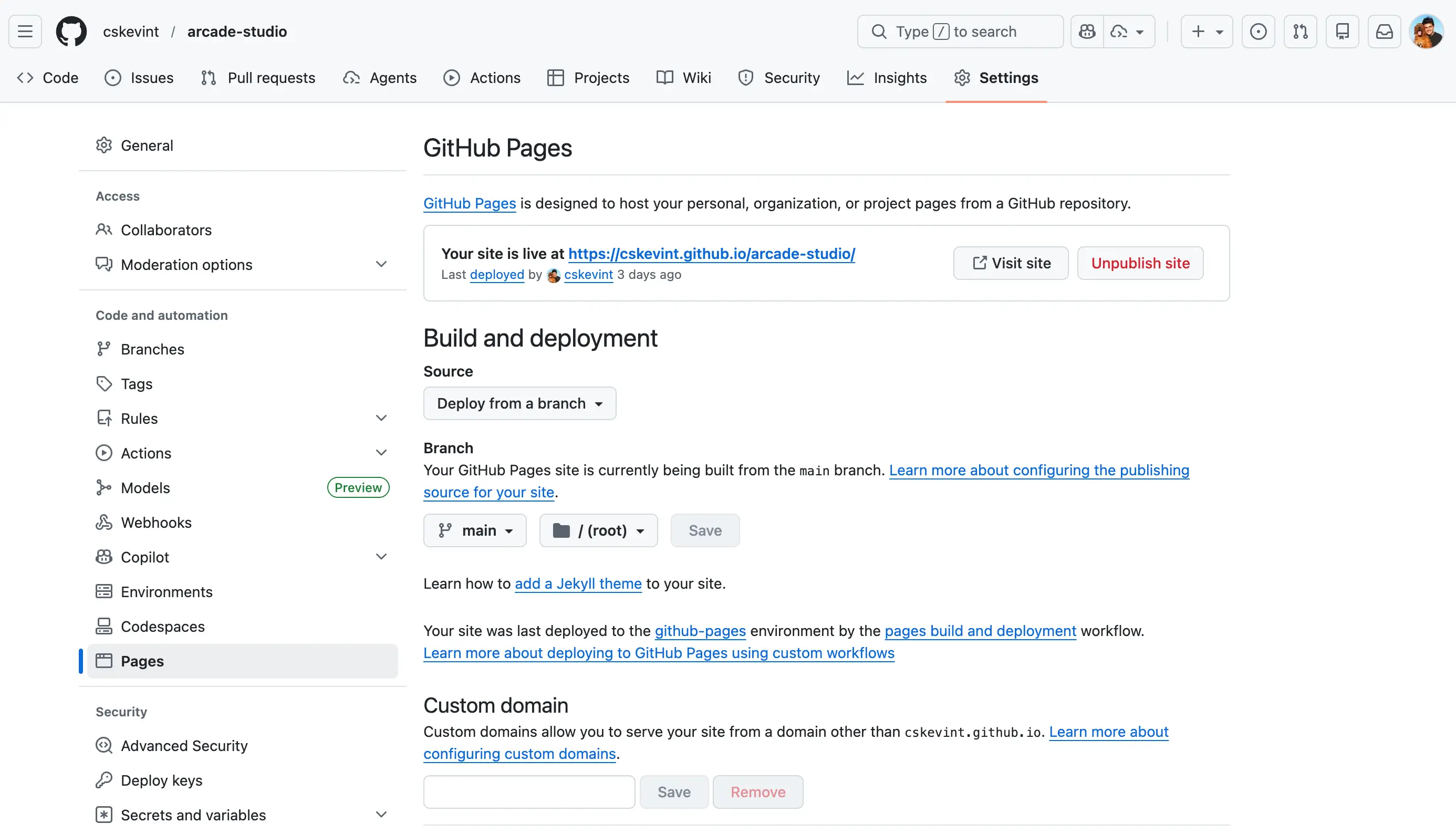
Example: Pages settings with the main branch selected for deployment.
💡 Tip: It may take 1–2 minutes for your site to go live after the first deployment. Refresh the Settings > Pages section to see your site URL.
👀 Watch the deployment: In your repository, open the "Actions" tab to see the GitHub Pages workflow running. Wait for a green checkmark before opening your site URL.
6Understanding your site URL
GitHub Pages gives your site a free URL based on your GitHub username and repository name. There are two types of sites:
Project site (most common)
Each repository gets its own site at a sub-path under your username. For example, if your username is maria-dev and your repo is my-portfolio:
Format: https://<username>.github.io/<repository>
User site (one per account)
If you create a repository named exactly <username>.github.io, it becomes your personal site at the root URL:
Format: https://<username>.github.io
You can have many project sites but only one user site. Here's how URLs map for the user maria-dev:
| Type | Repository Name | Live URL |
|---|---|---|
| User site | maria-dev.github.io | https://maria-dev.github.io |
| Project site | my-portfolio | https://maria-dev.github.io/my-portfolio |
| Project site | blog | https://maria-dev.github.io/blog |
💡 Tip: You can have unlimited project sites — one per public repository. This lets you host a portfolio, blog, documentation, and more all from the same GitHub account.
7Custom domain (optional)
If you own a domain name (e.g. mariadev.com), you can point it to your GitHub Pages site instead of using the github.io URL.
- In your repository Settings > Pages, enter your custom domain under "Custom domain".
- At your domain registrar (e.g. Namecheap, Google Domains), add a CNAME record pointing to <username>.github.io.
- Check "Enforce HTTPS" in the GitHub Pages settings for a free SSL certificate.
After DNS propagation (up to 24 hours), your site will be available at your custom domain:
| Before | After |
|---|---|
| https://maria-dev.github.io/my-portfolio | https://www.mariadev.com |
📖 Lesson: Learn how websites work end-to-end in our Create your own website lesson.
You're all set!
Your GitHub Pages site is live! You now know how to create, deploy, and manage a free static website on GitHub — and you understand exactly what GitHub Pages can and can't do.
Back to codelabs