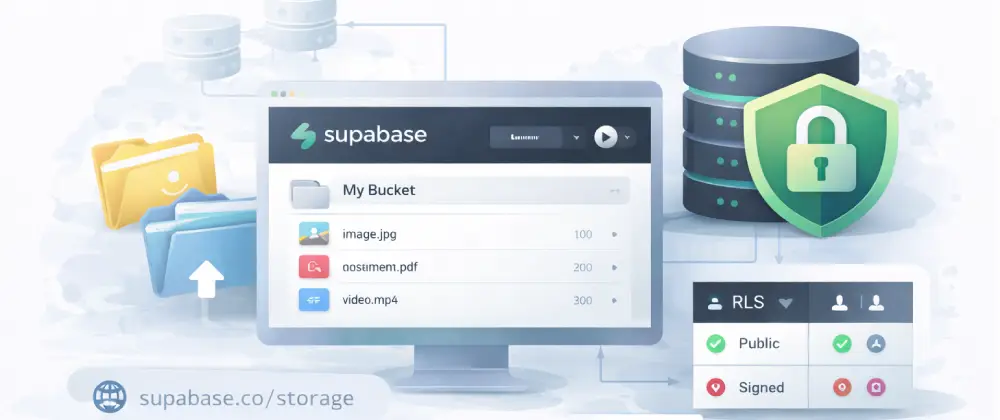
File storage with Supabase Storage
In this codelab you'll learn what file storage is, create Supabase Storage buckets, upload and download files, generate public and signed URLs, and secure everything with Row Level Security policies.
Before you start
This codelab assumes you've completed:
- • Getting started with Supabase — You have a Supabase project set up
What you'll use
- Supabase Storage — A file storage service built into Supabase for uploading images, videos, documents, and any other files. Learn more →
- Supabase — An open-source Firebase alternative with a PostgreSQL database, authentication, and more. Learn more →
- Supabase JS Client — The JavaScript client library for interacting with Supabase services from your app. Learn more →
1What is file storage?
Most web apps need to store files — profile photos, uploaded documents, product images, or downloadable content. These files are too large and too different from regular data to store in a database.
Instead, apps use file storage services — cloud-based systems designed specifically for storing and serving files. They handle the heavy lifting: storage, delivery via CDN, access control, and more.
Files apps commonly store
- •User profile pictures and avatars
- •Product images for an online store
- •PDF documents, invoices, and reports
- •Audio and video files for media apps
💡 Think of it this way
A database is like a filing cabinet — great for organized records like names and numbers. File storage is like a warehouse — built for larger, varied items like photos, videos, and documents that don't fit neatly in a drawer.
2What is Supabase Storage?
Supabase Storage is a file storage service built right into Supabase. It organizes files into buckets — think of them as top-level folders. Each bucket can hold unlimited files and subfolders.
- •Buckets — Organize files into named containers — one for avatars, one for documents, etc.
- •Public and private access — Public buckets give every file a shareable URL. Private buckets require authentication.
- •CDN delivery — Files are served through a global CDN, so they load fast anywhere in the world.
- •RLS policies — Use Row Level Security to control who can upload, download, and delete files.
Supabase Storage uses the same authentication system as the rest of Supabase, so you can reuse your existing user accounts and permissions.
💡 Tip: If you haven't set up a Supabase project yet, start with our Getting started with Supabase codelab
3Create a bucket
Buckets are the top-level containers for your files. Let's create one:
- Go to your Supabase dashboard at supabase.com/dashboard
- Click Storage in the left sidebar.
- Click New bucket.
- Enter a name (e.g. avatars), choose Public or Private, and click Create bucket.
Public vs. private buckets
- •Public — Anyone with the URL can access files. Great for profile pictures, product images, and public assets.
- •Private — Files require authentication or a signed URL. Use for sensitive documents, invoices, and user uploads.
You can also create buckets with SQL:
-- You can also create a bucket with SQL
INSERT INTO storage.buckets (id, name, public)
VALUES ('avatars', 'avatars', true);4Upload files
Install the Supabase JavaScript client if you haven't already:
npm install @supabase/supabase-jsHere's how to upload a file from your app:
import { createClient } from '@supabase/supabase-js';

const supabase = createClient(
  'https://YOUR_PROJECT.supabase.co',
  'YOUR_ANON_KEY'
);

// Upload a file
async function uploadFile(file) {
  const { data, error } = await supabase.storage
    .from('avatars')
    .upload(`public/${file.name}`, file, {
      cacheControl: '3600',
      upsert: false,
    });

  if (error) {
    console.error('Upload failed:', error.message);
  } else {
    console.log('Uploaded:', data.path);
  }
}
You can also upload from an HTML file input:
// Upload from an HTML file input
const fileInput = document.getElementById('file-input');
fileInput.addEventListener('change', async (e) => {
  const file = e.target.files[0];
  if (file) await uploadFile(file);
});
⚠️ File size: The free plan allows files up to 50 MB. For larger files, you'll need a paid plan.
5Get public URLs
For public buckets, every file gets a permanent URL you can use in your app:
// Get the public URL for a file
const { data } = supabase.storage
  .from('avatars')
  .getPublicUrl('public/profile.jpg');

console.log(data.publicUrl);
// https://YOUR_PROJECT.supabase.co/storage/v1/object/public/avatars/public/profile.jpg
For private buckets, you'll need a signed URL — a temporary link that expires after a set time:
// For private buckets, generate a temporary signed URL
const { data, error } = await supabase.storage
  .from('documents')
  .createSignedUrl('reports/q1-report.pdf', 3600); // 1 hour

console.log(data.signedUrl);
Signed URLs are perfect for protecting sensitive files like invoices or private documents while still allowing temporary access.
6List and delete files
You can list all files in a bucket or folder:
// List files in a folder
const { data, error } = await supabase.storage
  .from('avatars')
  .list('public', {
    limit: 100,
    offset: 0,
    sortBy: { column: 'created_at', order: 'desc' },
  });

console.log(data);
// [{ name: 'profile.jpg', ... }, { name: 'banner.png', ... }]
Deleting files is just as easy:
// Delete a single file
const { error } = await supabase.storage
  .from('avatars')
  .remove(['public/old-photo.jpg']);

// Delete multiple files at once
const { error: bulkError } = await supabase.storage
  .from('avatars')
  .remove([
    'public/photo1.jpg',
    'public/photo2.jpg',
    'public/photo3.jpg',
  ]);
The remove() method accepts an array of file paths, so you can delete one file or many in a single call.
7Secure with RLS policies
By default, storage buckets have no access policies — meaning nobody can read or write files through the API. You need to create RLS (Row Level Security) policies to define who can do what.
Here are common policies you'll want to set up:
-- Allow anyone to view files in the avatars bucket
CREATE POLICY "Public read access"
  ON storage.objects FOR SELECT
  USING (bucket_id = 'avatars');

-- Allow authenticated users to upload to their own folder
CREATE POLICY "Users can upload own files"
  ON storage.objects FOR INSERT
  WITH CHECK (
    bucket_id = 'avatars'
    AND auth.uid()::text = (storage.foldername(name))[1]
  );

-- Allow users to delete their own files
CREATE POLICY "Users can delete own files"
  ON storage.objects FOR DELETE
  USING (
    bucket_id = 'avatars'
    AND auth.uid()::text = (storage.foldername(name))[1]
  );
A common pattern is to name each user's folder after their user ID. This makes it easy to write policies that restrict access to the file owner.
💡 Tip: RLS works the same way for storage as it does for database tables. Learn more in our Getting started with Supabase codelab
8Build a file upload component
Let's put it all together by building a React component that uploads an image and displays it:
// FileUpload.jsx — a React file upload component
import { useState } from 'react';
import { createClient } from '@supabase/supabase-js';

const supabase = createClient(
  import.meta.env.VITE_SUPABASE_URL,
  import.meta.env.VITE_SUPABASE_ANON_KEY
);

function FileUpload() {
  const [uploading, setUploading] = useState(false);
  const [fileUrl, setFileUrl] = useState(null);

  const handleUpload = async (e) => {
    const file = e.target.files[0];
    if (!file) return;

    setUploading(true);

    const filePath = `uploads/${Date.now()}-${file.name}`;
    const { error } = await supabase.storage
      .from('avatars')
      .upload(filePath, file);

    if (error) {
      alert('Upload failed: ' + error.message);
    } else {
      const { data } = supabase.storage
        .from('avatars')
        .getPublicUrl(filePath);

      setFileUrl(data.publicUrl);
    }

    setUploading(false);
  };

  return (
    <div>
      <input
        type="file"
        accept="image/*"
        onChange={handleUpload}
        disabled={uploading}
      />
      {uploading && <p>Uploading...</p>}
      {fileUrl && (
        <div>
          <p>Uploaded!</p>
          <img src={fileUrl} alt="Uploaded file" width={200} />
        </div>
      )}
    </div>
  );
}

export default FileUpload;
This component handles the complete flow: selecting a file, uploading it to Supabase Storage, and displaying the uploaded image with its public URL.
💡 New to React?
If you haven't built a React app yet, check out our Build a React app with Vite codelab
9What's next
You've learned file storage with Supabase! Here are some great next steps:
🗄️ Database integration
Store file metadata alongside your data — Getting started with Supabase
⚛️ Build a React app
Create a frontend to showcase your uploads — Build a React app with Vite
🔗 Full-stack wiring
Connect your frontend to a custom backend — Connect frontend to backend
▲ Deploy your app
Put your app online — Deploy web apps with Vercel
🆓 Free plan storage limits
- • 1 GB total file storage
- • 50 MB maximum file size
- • 2 GB bandwidth per month
📖 Lesson: See how file storage fits into web application architecture in our Elements of a web application lesson.
You did it!
You've learned file storage with Supabase — creating buckets, uploading and downloading files, generating URLs, securing with RLS, and building a file upload component. You're ready to add file storage to your apps!
Back to codelabs