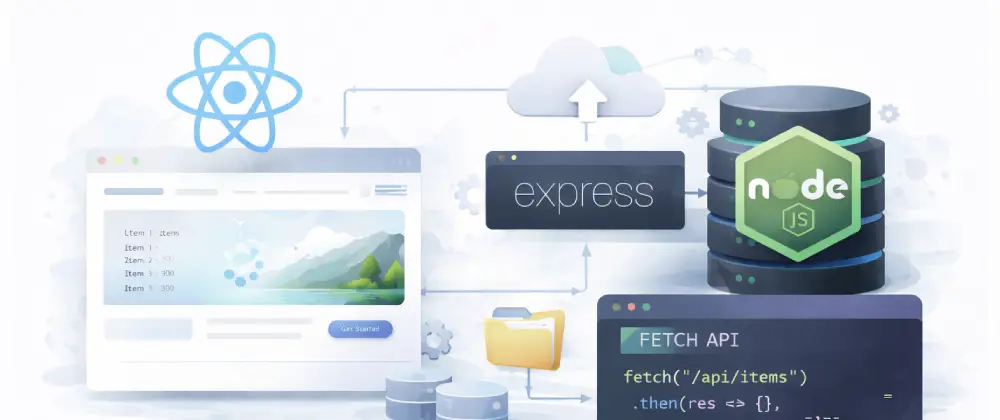
Connect frontend to backend
In this codelab you'll wire a React frontend to an Express backend, fetch data with the Fetch API, handle errors gracefully, and use environment variables — building a complete full-stack application.
Before you start
This codelab assumes you've completed:
- • Getting started with Node.js & npm — Node.js and npm installed on your machine
- • Build a backend API with Node.js — You know how to build Express routes
- • Build a React app with Vite — You can create React components with state
What you'll use
- React — A JavaScript library for building interactive user interfaces with reusable components. Learn more →
- Express — A Node.js framework for building web servers and APIs. Learn more →
- Fetch API — The browser's built-in API for making HTTP requests to servers. Learn more →
1How frontend and backend communicate
A full-stack application has two parts: a frontend that users see and interact with, and a backend that stores data and handles business logic. They communicate over HTTP using an API.
Here's how the flow works when a user loads a todo list:
Request → Response flow
- The user opens the app in their browser (frontend).
- The frontend sends a GET request to the backend API.
- The backend reads the data and sends it back as JSON.
- The frontend receives the JSON and displays it on screen.
💡 Think of it this way
The frontend is like a customer at a counter. They place an order (HTTP request), the kitchen (backend) prepares it, and the server delivers the meal (HTTP response). The menu is the API — it defines what you can order.
2Set up the backend
Create a project with separate backend and frontend folders:
mkdir fullstack-app && cd fullstack-app
mkdir backend && cd backend
npm init -y
npm install express cors
Create the backend server with Express:
// backend/server.js
const express = require('express');
const cors = require('cors');

const app = express();
const PORT = 3001;

app.use(cors());
app.use(express.json());

// In-memory data store
let todos = [
  { id: 1, task: 'Learn React', done: false },
  { id: 2, task: 'Build an API', done: true },
];
let nextId = 3;

// GET all todos
app.get('/api/todos', (req, res) => {
  res.json(todos);
});

// POST a new todo
app.post('/api/todos', (req, res) => {
  const { task } = req.body;
  if (!task) return res.status(400).json({ error: 'Task is required' });
  const todo = { id: nextId++, task, done: false };
  todos.push(todo);
  res.status(201).json(todo);
});

// DELETE a todo
app.delete('/api/todos/:id', (req, res) => {
  todos = todos.filter(t => t.id !== Number(req.params.id));
  res.status(204).send();
});

app.listen(PORT, () => {
  console.log(`Backend running at http://localhost:${PORT}`);
});
Test it: run node server.js and visit http://localhost:3001/api/todos — you should see JSON data.
3Set up the frontend
Open another terminal and create a React app with Vite:
# From the fullstack-app directory
cd ..
npm create vite@latest frontend -- --template react
cd frontend
npm install
Your project structure now looks like this:
fullstack-app/
├── backend/
│   ├── package.json
│   └── server.js
└── frontend/
    ├── package.json
    ├── vite.config.js
    └── src/
        ├── main.jsx
└── App.jsx4Fetch data from the backend
Now let's connect the frontend to the backend. Replace src/App.jsx in the frontend folder with this code:
// frontend/src/App.jsx
import { useState, useEffect } from 'react';
import './App.css';

const API_URL = 'http://localhost:3001/api';

function App() {
  const [todos, setTodos] = useState([]);
  const [newTask, setNewTask] = useState('');

  // Fetch todos when the component loads
  useEffect(() => {
    fetch(`${API_URL}/todos`)
      .then(res => res.json())
      .then(data => setTodos(data));
  }, []);

  // Add a new todo
  const addTodo = async () => {
    if (!newTask.trim()) return;
    const res = await fetch(`${API_URL}/todos`, {
      method: 'POST',
      headers: { 'Content-Type': 'application/json' },
      body: JSON.stringify({ task: newTask }),
    });
    const todo = await res.json();
    setTodos([...todos, todo]);
    setNewTask('');
  };

  // Delete a todo
  const deleteTodo = async (id) => {
    await fetch(`${API_URL}/todos/${id}`, { method: 'DELETE' });
    setTodos(todos.filter(t => t.id !== id));
  };

  return (
    <div className="app">
      <h1>Full-stack todo list</h1>

      <div className="add-form">
        <input
          type="text"
          value={newTask}
          onChange={e => setNewTask(e.target.value)}
          placeholder="Add a new task..."
          onKeyDown={e => e.key === 'Enter' && addTodo()}
        />
        <button onClick={addTodo}>Add</button>
      </div>

      <ul className="todo-list">
        {todos.map(todo => (
          <li key={todo.id}>
            <span>{todo.task}</span>
            <button onClick={() => deleteTodo(todo.id)}>✕</button>
          </li>
        ))}
      </ul>
    </div>
  );
}

export default App;
This component fetches todos from the backend when it loads, lets you add new todos, and lets you delete them.
Key concepts
- •fetch() — The browser's built-in function for making HTTP requests.
- •useEffect() — A React hook that runs code when a component first appears on screen.
- •async/await — A cleaner way to write asynchronous code — wait for the server to respond before continuing.
5Run both servers
You need to run the backend and frontend at the same time, each in its own terminal:
Terminal 1 — Backend
cd backend
node server.js
Terminal 2 — Frontend
cd frontend
npm run dev
Open the frontend URL (usually http://localhost:5173) in your browser. You should see the todo list with data from the backend!
⚠️ Both servers must be running! If you see an empty list or errors, make sure the backend server is running on port 3001. Check the browser console for error messages.
6Understand CORS
When your frontend at localhost:5173 tries to call your backend at localhost:3001, the browser blocks it by default. This is a security feature called CORS (Cross-Origin Resource Sharing).
We already installed the cors package in our backend to allow this. Without it, you'd see an error like: "Access to fetch has been blocked by CORS policy."
Why CORS exists
- •Prevents malicious websites from reading data from other sites.
- •Protects user data by requiring servers to explicitly allow cross-origin requests.
- •In development, your frontend and backend are on different ports — so they count as different origins.
In production, you should restrict CORS to your actual domain:
// In production, restrict to your domain:
app.use(cors({ origin: 'https://your-app.vercel.app' }));7Add error handling
Real-world apps need to handle errors gracefully — the backend might be down, the network might be slow, or the data might be invalid. Update the fetch call to handle errors:
// frontend/src/App.jsx — updated fetch with error handling
useEffect(() => {
  fetch(`${API_URL}/todos`)
    .then(res => {
      if (!res.ok) throw new Error('Failed to fetch');
      return res.json();
    })
    .then(data => setTodos(data))
    .catch(err => {
      console.error(err);
      setError('Could not load todos. Is the backend running?');
    });
}, []);
Add an error state to display messages to the user:
const [error, setError] = useState(null);

// In the JSX:
{error && (
  <div className="error-banner">
    <p>{error}</p>
  </div>
)}
💡 Tip: Always show the user a helpful message when something goes wrong. Never just silently fail — debugging becomes much harder without visible error feedback.
8Add environment variables
Hardcoding http://localhost:3001 works for development, but in production your API URL will be different. Use environment variables to keep things flexible:
# frontend/.env
VITE_API_URL=http://localhost:3001/api
Then use it in your code:
// frontend/src/App.jsx
const API_URL = import.meta.env.VITE_API_URL;
When you deploy, you'll set VITE_API_URL to your production backend URL in Vercel's environment variables settings.
⚠️ Important: In Vite, environment variables must start with VITE_ to be available in the frontend. Never put secret keys in frontend environment variables — they're visible to anyone who inspects your code.
9What's next
You've built a full-stack application! Here are some great next steps:
▲ Deploy everything
Put your full-stack app online — Deploy web apps with Vercel
📦 Upload files
Add file uploads to your app — File storage with Supabase Storage
🐙 Version control
Track your code with Git — Getting started with GitHub
📖 Lesson: See how full-stack applications are structured in our Elements of a web application lesson.
You did it!
You've built a full-stack application with a React frontend and Express backend, learned about fetch, CORS, error handling, and environment variables. You're ready to build production-ready apps!
Back to codelabs