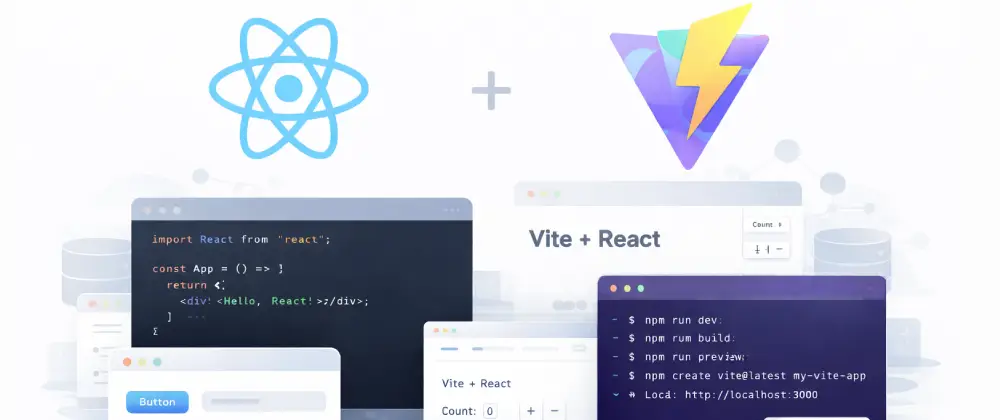
Build a React app with Vite
In this codelab you'll create a React application from scratch using Vite, learn core React concepts like components, state, and props, push your project to GitHub, and deploy it live on Vercel.
What you'll use
- React — A JavaScript library for building user interfaces with reusable components, maintained by Meta. Learn more →
- Vite — A modern build tool that provides instant hot module replacement (HMR) and fast production builds. Learn more →
- Node.js — A JavaScript runtime that lets you run JavaScript outside the browser — required for React development tooling. Learn more →
Prerequisites
This codelab builds on skills from other codelabs. Complete these first if you haven't already:
- • Getting started with Node.js & npm — You'll need Node.js and npm installed to create and run the project.
- • Getting started with GitHub — You'll need a GitHub account and Git installed to push your code.
- • Deploy web apps with Vercel — We'll deploy the finished app to Vercel at the end.
1What is React?
React is a JavaScript library for building user interfaces. Instead of writing HTML pages that the browser renders statically, React lets you build interactive UIs from small, reusable pieces called components.
Here are the core concepts you'll work with:
- •Components — The building blocks of any React app. Each component is a function that returns what should appear on screen.
- •JSX — A syntax that lets you write HTML-like code inside JavaScript. It looks like HTML but compiles to JavaScript.
- •State — Data that can change over time. When state changes, React automatically re-renders the component to reflect the new data.
- •Props — Data passed from a parent component to a child component. Props let you customize and reuse components.
React is the most widely used JavaScript UI library. It powers Facebook, Instagram, Airbnb, Netflix, and millions of other applications.
2What is Vite?
Vite (French for "fast") is a modern build tool for web projects. It replaces older tools like Create React App and Webpack with a much faster alternative:
- •Instant server start — Vite starts the dev server in milliseconds, not seconds
- •Lightning-fast HMR — changes appear in the browser almost instantly as you save
- •Optimized builds — production builds use Rollup for small, efficient bundles
Vite is now the recommended way to start React projects. It supports React, Vue, Svelte, and vanilla JavaScript/TypeScript out of the box.
3Create the project
Let's create a new React + Vite project using the terminal:
Open your terminal and run these commands:
cd %USERPROFILE%\Desktop
npm create vite@latest my-react-app -- --template react
cd my-react-app
npm install
Using Windows? See Pro Tip #1 to set up Git Bash as your default IDE terminal.
Start the development server:
npm run devYour browser should open automatically to http://localhost:5173 showing the Vite + React welcome page. If it doesn't, open that URL manually.
💡 Tip: Keep the dev server running while you work. Vite will automatically update the browser every time you save a file — no manual refresh needed!
4Understand the project structure
Let's look at the files Vite created for you:
my-react-app/
├── index.html          # Entry HTML file
├── package.json        # Dependencies & scripts
├── vite.config.js      # Vite configuration
├── public/             # Static assets (favicon, images)
└── src/
    ├── main.jsx        # App entry point
    ├── App.jsx         # Root component
    ├── App.css         # App styles
└── index.css # Global styles- •index.html — The single HTML file that loads your React app. Vite injects your bundled JavaScript here.
- •src/main.jsx — The entry point that mounts your React app into the DOM. You rarely need to edit this.
- •src/App.jsx — Your root component — this is where you'll build your app's UI.
- •vite.config.js — Vite's configuration file. The React plugin is already set up for you.
5Build your first component
Now let's replace the default Vite template with our own app. Components are functions that return JSX — the HTML-like syntax React uses.
Open src/App.jsx and replace its contents with:
// src/App.jsx
import { useState } from 'react'
import './App.css'

function App() {
  const [count, setCount] = useState(0)

  return (
    <div className="app">
      <h1>My First React App</h1>
      <p>Welcome to your React + Vite project!</p>

      <div className="card">
        <button onClick={() => setCount(count + 1)}>
          Count: {count}
        </button>
        <p>Click the button to see React state in action.</p>
      </div>

      <footer>
        <p>Built with React + Vite</p>
      </footer>
    </div>
  )
}

export default App
Now replace src/App.css with clean styles:
/* src/App.css */
.app {
  max-width: 600px;
  margin: 0 auto;
  padding: 2rem;
  text-align: center;
  font-family: system-ui, sans-serif;
}

h1 {
  color: #0A1633;
  font-size: 2rem;
}

.card {
  padding: 2rem;
  margin: 2rem 0;
  border-radius: 12px;
  background: #F6F8FC;
}

button {
  padding: 0.75rem 1.5rem;
  border-radius: 8px;
  border: none;
  background: #2F6BFF;
  color: white;
  font-size: 1rem;
  font-weight: 600;
  cursor: pointer;
  transition: background 0.2s;
}

button:hover {
  background: #1a55e8;
}

footer {
  margin-top: 2rem;
  color: #666;
  font-size: 0.875rem;
}
Save both files and check your browser — you should see your app with a heading, welcome text, and a clickable counter button!
6Add a second component
Real React apps are built from many components. Let's create a reusable Greeting component. Create a new file called src/Greeting.jsx:
// src/Greeting.jsx
function Greeting({ name }) {
  return (
    <div className="greeting">
      <h2>Hello, {name}! 👋</h2>
      <p>This is a reusable React component.</p>
    </div>
  )
}

export default Greeting
Now import and use it in App.jsx — replace the file with:
// src/App.jsx
import { useState } from 'react'
import Greeting from './Greeting'
import './App.css'

function App() {
  const [count, setCount] = useState(0)
  const [name, setName] = useState('Developer')

  return (
    <div className="app">
      <h1>My First React App</h1>

      <Greeting name={name} />

      <div className="card">
        <input
          type="text"
          value={name}
          onChange={(e) => setName(e.target.value)}
          placeholder="Enter your name"
        />
        <button onClick={() => setCount(count + 1)}>
          Count: {count}
        </button>
      </div>

      <footer>
        <p>Built with React + Vite</p>
      </footer>
    </div>
  )
}

export default App
Check your browser — you should see a greeting that updates as you type! This demonstrates two core React concepts working together.
Key concepts in action
- •Props — The Greeting component receives a name prop from App and displays it. When the prop changes, the component re-renders.
- •State — The name state in App is controlled by the input field. Typing updates the state, which updates the Greeting component.
- •One-way data flow — Data flows down from parent (App) to child (Greeting) via props. The child can't directly modify the parent's state.
7Push to GitHub
Let's save your project to GitHub so it's backed up and ready to deploy. Vite already created a .gitignore for you, so node_modules won't be committed.
cd my-react-app
git init
git add .
git commit -m "Initial commit: React + Vite app"
gh repo create my-react-app --public --source=. --push
If you don't have the GitHub CLI (gh) installed, you can also create the repository manually on github.com and push with git remote add origin.
Need help with Git and GitHub? Follow our Getting started with GitHub codelab first.
8Deploy to Vercel
Now let's deploy your React app to the internet. Vercel automatically detects Vite projects and configures everything for you.
- Go to vercel.com/new
- Click "Import" next to your my-react-app repository.
- Vercel will auto-detect Vite — just click "Deploy."
- Wait about 30 seconds. Your app is now live at https://my-react-app.vercel.app!
Every time you push to GitHub, Vercel will automatically rebuild and redeploy your app. Push a change and watch it go live in seconds.
💡 Automatic Deployments: Vercel creates a preview URL for every branch and pull request. This means you can test changes before merging them to main.
For more details on custom domains, preview deployments, and what else Vercel can deploy, see our Deploy web apps with Vercel codelab.
9What's next?
Congratulations — you've built and deployed a React app! Here are some ways to keep going:
🎨 Better styling
Try Tailwind CSS for utility-first styling, or a component library like Radix UI or shadcn/ui for pre-built, accessible components.
🔀 Routing
Add React Router to create multiple pages with client-side navigation — or explore Next.js for server-side rendering and file-based routing.
🔗 API integration
Connect your React frontend to a real backend — Build a backend API with Node.js and then Connect frontend to backend to see it all come together.
💡 Static hosting alternative: You can also host static React apps on GitHub Pages — see our Use GitHub Pages to host a static website codelab for details.
📖 Lesson: See how frontend frameworks fit into web application architecture in our Elements of a web application lesson.
You did it!
You've built a React application from scratch using Vite, learned about components, state, and props, pushed your code to GitHub, and deployed it live on Vercel. You're ready to build real projects!
Back to codelabs